 myra.BY PANKAJ GAIKAR
01 / Google
Android TV
& Google TV
Compatible Sony, TCL, Hisense, Philips and Xiaomi models, NVIDIA Shield and Chromecast with Google TV.
Your next episode is a tap away. Turn your iPhone or iPad into a remote for your compatible smart TV. Now with an Apple Watch companion, too.
No ads. No subscriptions. No account required.
iOS 17+ · Same local Wi-Fi · Compatible TVs only
One app. More possibilities.
It's the platform inside your TV that matters. Myra supports these TV and streaming-device services, with controls tailored to what each can do.
01 / Google
Compatible Sony, TCL, Hisense, Philips and Xiaomi models, NVIDIA Shield and Chromecast with Google TV.
02 / Samsung
Compatible Samsung smart TVs with network remote support. Approve Myra on your TV when prompted.
03 / LG
Compatible LG webOS TVs. Accept the pairing request and enable network control where needed.
04 / Roku
Roku devices with mobile-app network control enabled. TV volume and power depend on the device.
05 / Amazon
Requires ADB debugging in Developer Options and authorization of your phone on the Fire TV.
Compatibility is not a guarantee for every model. Keyboard, app launch, volume, input and power support vary by TV, firmware and settings. Vizio and Apple TV are not supported remote-control platforms. Read the compatibility guide.
Built for the everyday
A proper remote, not a maze of menus. Navigate, type and open your favorite TV apps without the letter-by-letter struggle.
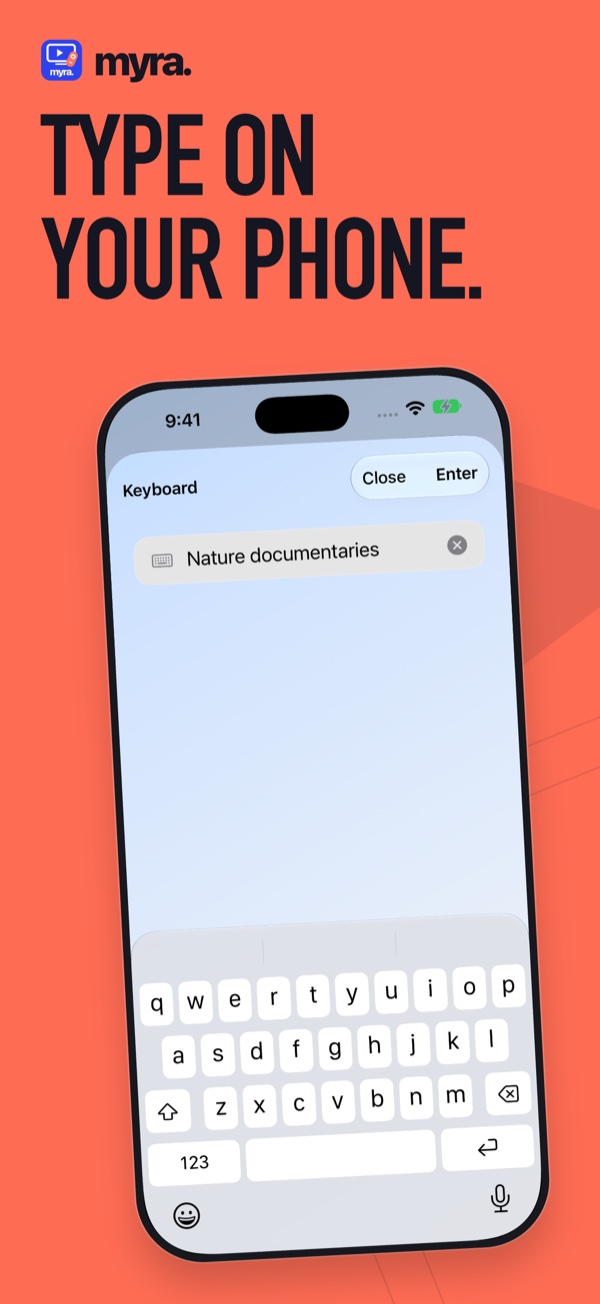
Enter text on supported TVs using your phone keyboard. Close without submitting, or use the separate Enter/Search action when your TV supports it.
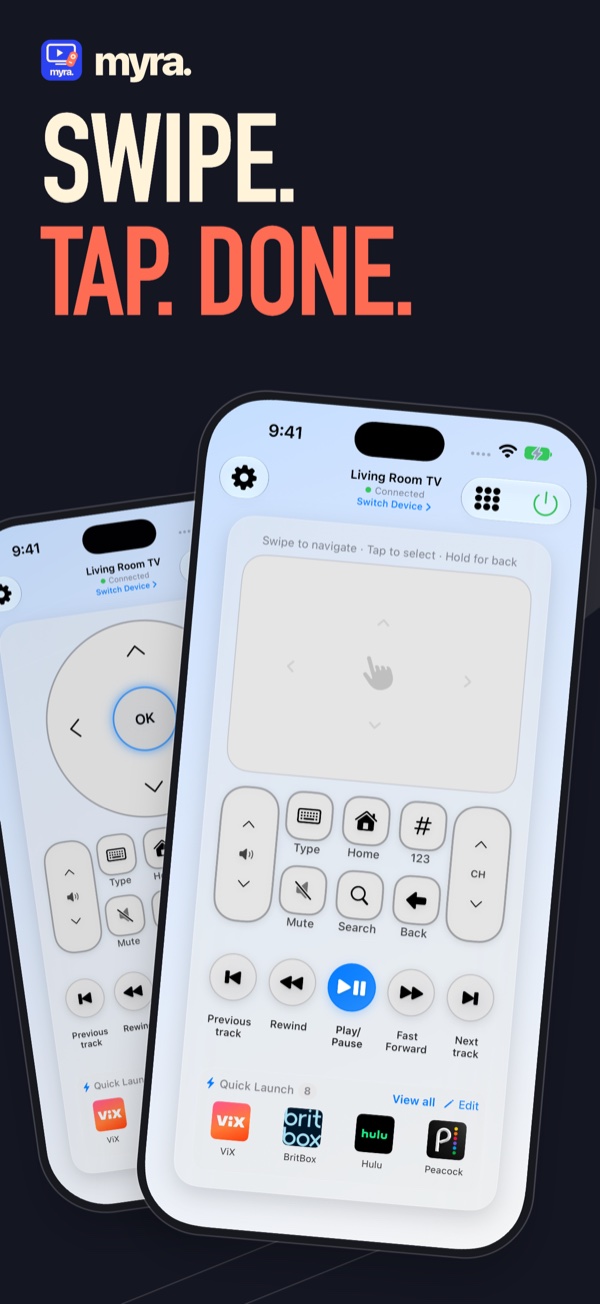
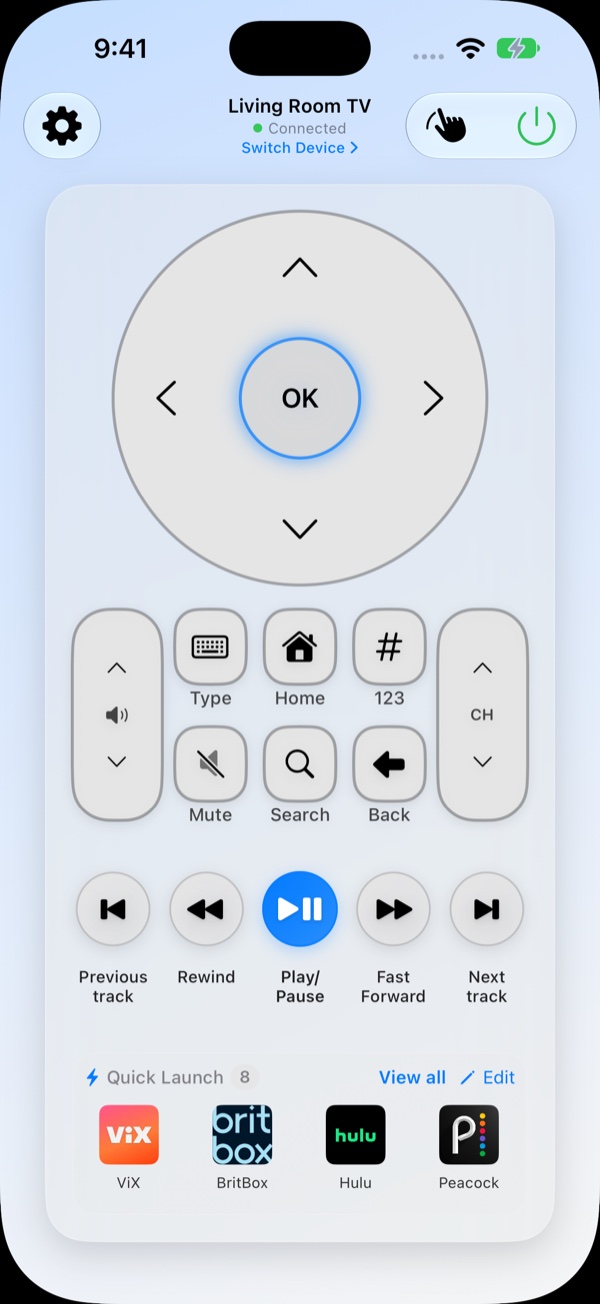
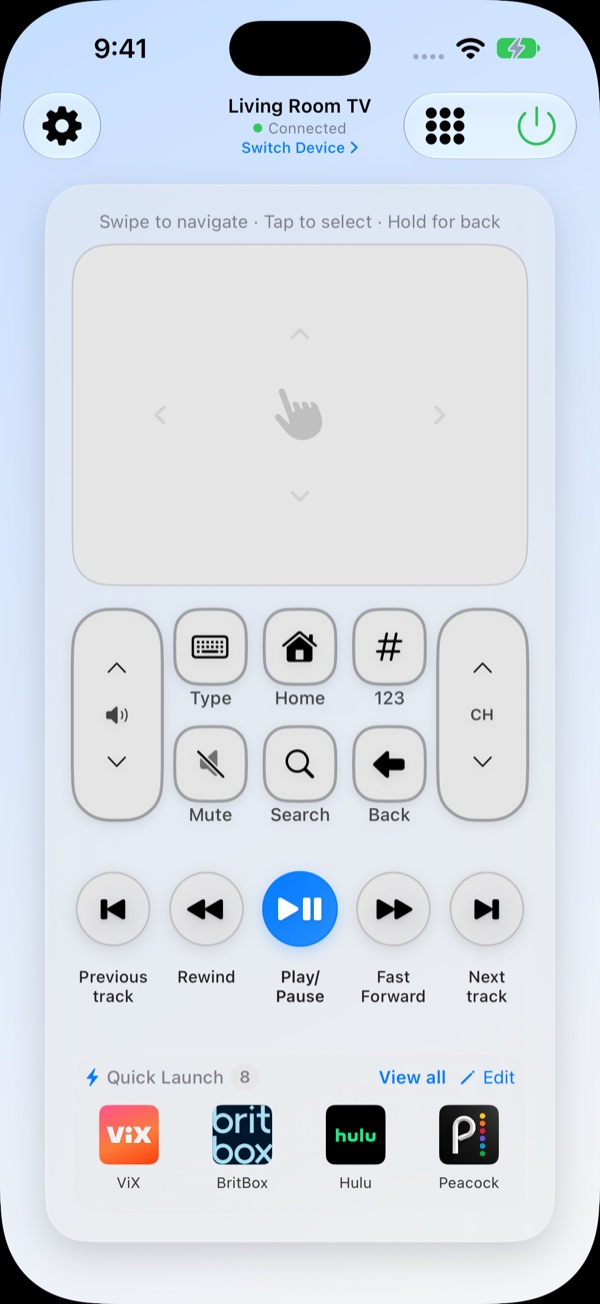
Choose directional buttons or touchpad navigation while keeping essential supported controls within reach. Myra explains when an action isn't available.
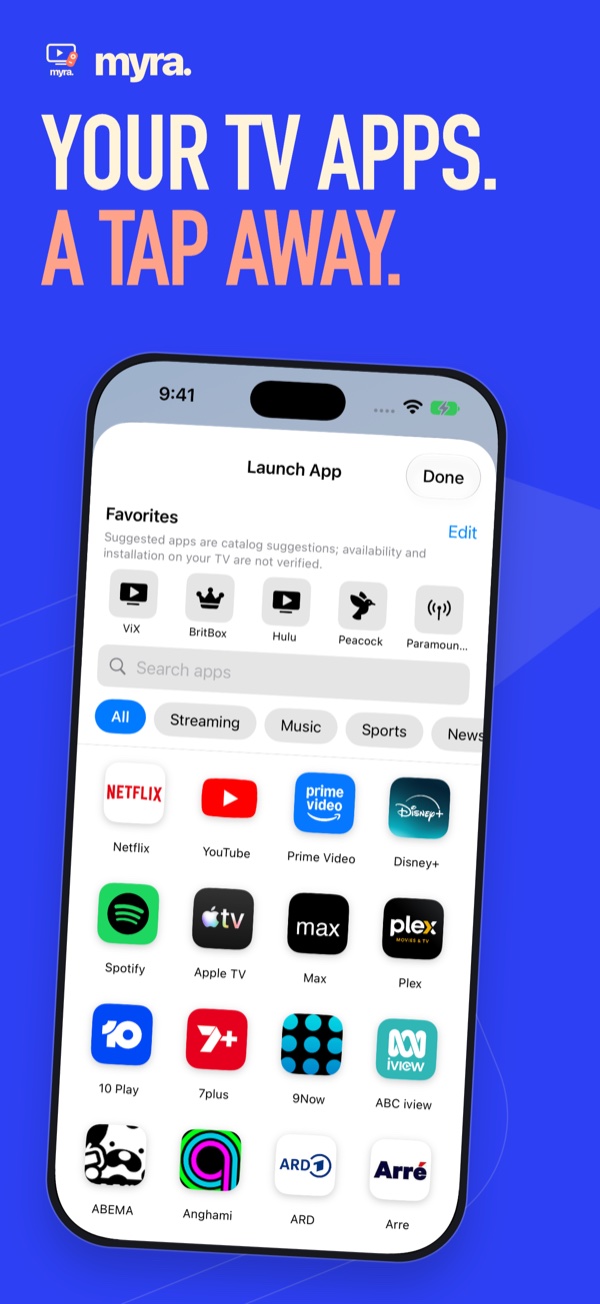
Keep app shortcuts close to your remote. Launch requires support from your TV and the app to be installed and available in your region.
Meet your wrist remote
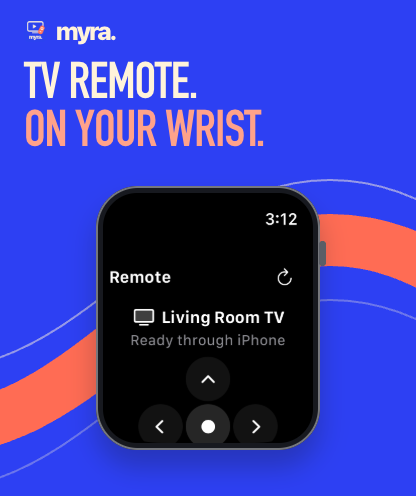
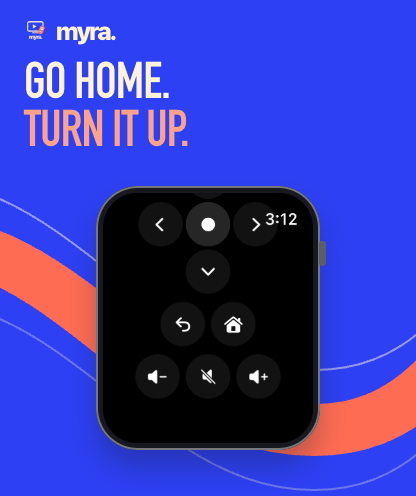
The Myra Apple Watch companion makes the small moments easier: navigate, go home, go back and adjust volume with supported controls.
Requires watchOS 10+ and an available paired iPhone. Your iPhone must be able to reach the TV. The Watch does not pair with or connect directly to your TV; delivery depends on phone, network and TV availability.
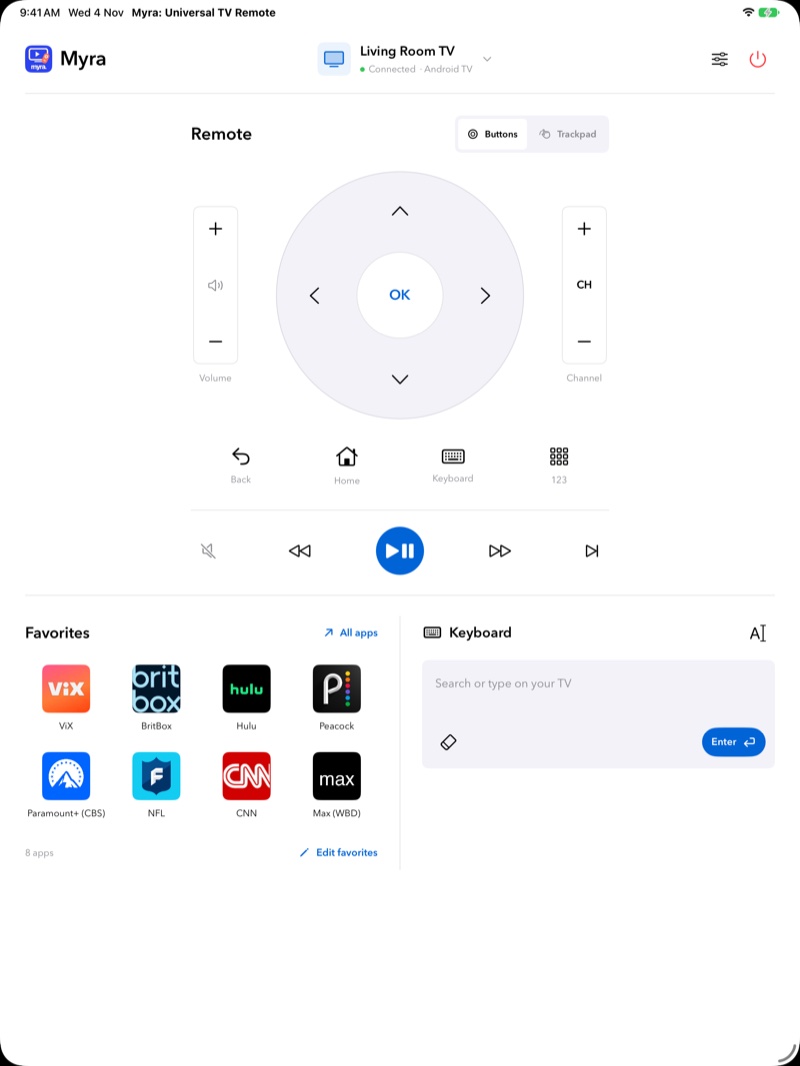
Made for the bigger screen
Myra on iPad brings the remote, your favorite TV apps and a text composer into a dedicated workspace. Switch between Buttons and Trackpad without losing your place.
Whether it's the living room TV or the bedroom Roku, save your TVs and switch from one place. Opening the chooser doesn't disconnect the TV you're using.
Actual app capture with illustrative TV and app data. Controls and app availability vary by connected TV.
The 3.0 chapter
A focused redesign with clearer setup, a familiar remote and fewer decisions between you and your TV.
Buttons and Swipe navigation keep essential supported controls available. A dedicated iPad workspace makes use of the larger screen.
Follow pairing steps for your TV, with clearer guidance when a connection needs attention.
Supported navigation and volume actions on your wrist, relayed through the paired iPhone.
Myra Night joins refreshed app icons and themes. Existing saved TVs and appearance choices stay with you.
Close the keyboard without submitting, and use a separate Enter/Search action where supported.
Expanded translations include Czech, Danish, Finnish, Greek, Hebrew, Hungarian, Malay, Norwegian, Romanian and Swedish.
Start here
No Myra account to create. Just your device, your compatible TV and the same local Wi-Fi.
Connect your iPhone or iPad and TV to the same local network. Guest networks can block device discovery.
Allow Local Network access, choose your TV, then approve its pairing prompt or enter its code. Fire TV needs ADB setup first.
Use Buttons or Swipe, type on supported TVs and keep app shortcuts nearby. Your saved TV is ready for next time.
TV not appearing or pairing not working? Follow the step-by-step support guide.
A few good questions
Honest answers about compatibility, privacy and how Myra works.
More help and contact →Yes. Myra is free, with no ads, subscriptions or Myra account required. TV streaming apps and the content they offer may have their own subscriptions; Myra doesn't provide access to that content.
No. Myra supports compatible Android TV / Google TV, Samsung Tizen, LG webOS, Roku and Fire TV devices. Features vary by model and firmware. A brand name alone doesn't establish compatibility. See the compatibility guide.
Yes. The Watch companion sends supported actions through your paired iPhone's selected-TV session. Keep your phone available and able to reach the TV over your local network. It isn't a standalone Watch-to-TV remote.
TV discovery and remote-control commands use your local network. The app also uses Firebase usage analytics, crash/performance diagnostics and Microsoft Clarity interaction/session replay, which can send data to those providers. This is separate from TV control. Read the Privacy Policy for details.
Power behavior depends on your TV and its network-standby settings. Some TVs stop accepting network commands when off. Myra can't guarantee wake-up or replace every physical-remote function.
The Open Myra widget is a launcher. Experimental widget controls, if available in your build, are off by default and are not a guaranteed production feature. This page doesn't promise Siri remote control, Control Widgets or Live Activities.
Myra: Universal TV Remote · Independently built by Pankaj Gaikar.